
Documentation

Connect Pace to HubSpot

Install the Pace integration to sync your HubSpot companies, contacts, deals, emails, and owners — and layer AI pipeline and forecast intelligence onto your CRM of record. Setup takes about two minutes.

HubSpot HubSpot Integration
CRM sync · AI forecasting · Pipeline intelligence

HubSpot as your CRM of record, with AI on top.

The Pace integration connects to your HubSpot portal and keeps companies, contacts, deals, emails, and owners in sync. Pace reads that data to score win probability, suggest forecast categories, surface deal risk, and answer questions about your pipeline — without changing how your team works in HubSpot. The connection is read-first and scoped to the single portal you authorize; the only thing Pace writes back is deal properties, and only when a rep edits one.

App Pace
Auth OAuth 2.0 (HubSpot-hosted consent)
Syncs Companies · Contacts · Deals · Emails · Owners & teams
Direction HubSpot → Pace (read)
Pace → HubSpot deals (property updates)
Frequency Scheduled every ~2 hours · on-demand refresh available
Setup time ~2 minutes · one HubSpot admin

The data Pace reads from HubSpot.

Pace syncs six HubSpot objects — the set it needs to build pipeline and forecast intelligence. Everything else in your portal is left alone.

Companies
Company records with name, domain, and owner — these become Accounts in Pace, grouping deals and contacts together.
Contacts
Contacts and their company association, including name, email, and phone — the stakeholders Pace attaches to each account and deal.
Deals
Deals with amount, stage, close date, pipeline, owner, and manual forecast category — these become Opportunities in Pace, the pipeline it scores, forecasts, and monitors for risk. Pace also keeps a history of stage and amount changes over time.
Emails
Logged email activity on your companies and deals, with direction, participants, and timestamp — the customer engagement signal behind momentum and deal-risk scoring.
  • Requires the sales-email-read scope. Portals without it simply skip email sync.
Owners & teams
HubSpot owners become Pace users, and your HubSpot team structure becomes the reporting hierarchy — so forecasts roll up by rep and by team the way they do in HubSpot.
Pipelines & stages
Your deal pipeline and stage definitions are read so Pace shows real stage names and mirrors your funnel. They're used as reference data rather than stored as records of their own.
Deals need a company. A deal must be associated with a company to sync — deals with no company association are skipped.

Connect your HubSpot account.

You can install Pace from within your Pace workspace, or straight from the HubSpot App Marketplace. Both paths use HubSpot's own OAuth screen — you approve the connection inside HubSpot and land back in Pace, connected. You'll need to be a HubSpot admin (or have app-install permission) to grant access.

Install from Pace

Recommended · app.pacehq.ai

Recommended
  1. Sign in to Pace at app.pacehq.ai as an organization admin.
  2. Open Settings from the left sidebar, then select the Integrations tab.
  3. In the CRM category, find HubSpot and click Connect. (If another CRM is connected, disconnect it first — Pace uses one CRM of record at a time.)
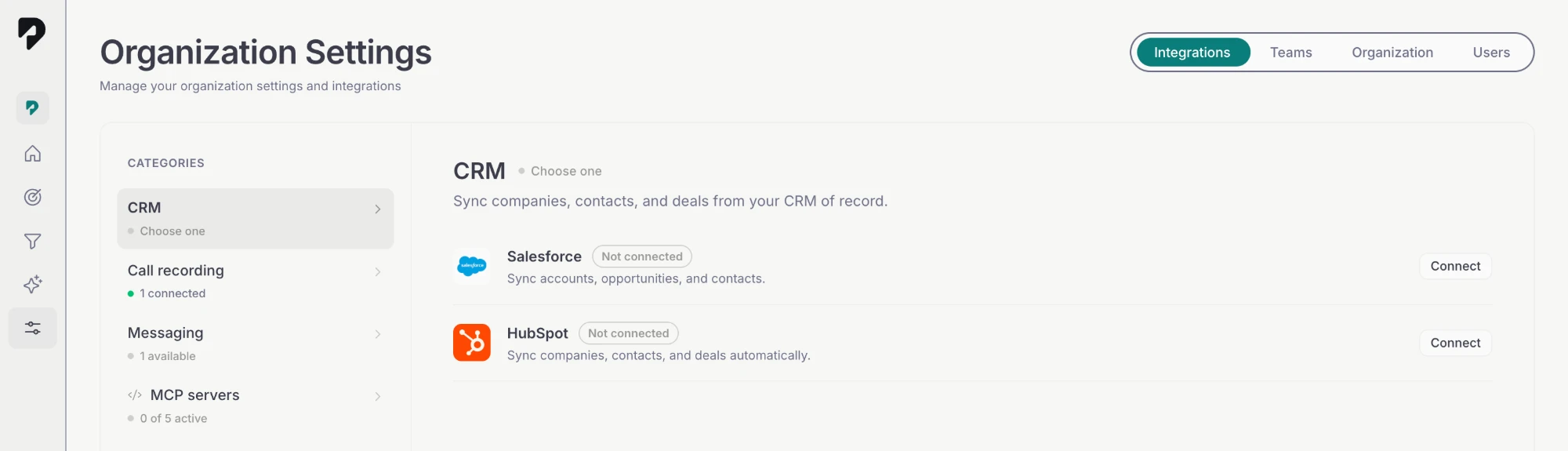
    Pace Organization Settings, Integrations tab: the CRM category lists Salesforce and HubSpot, both marked Not connected, each with a Connect button
  4. You're redirected to HubSpot's Choose an account screen. Pick the HubSpot account you want to sync — if you only administer one, it is preselected.
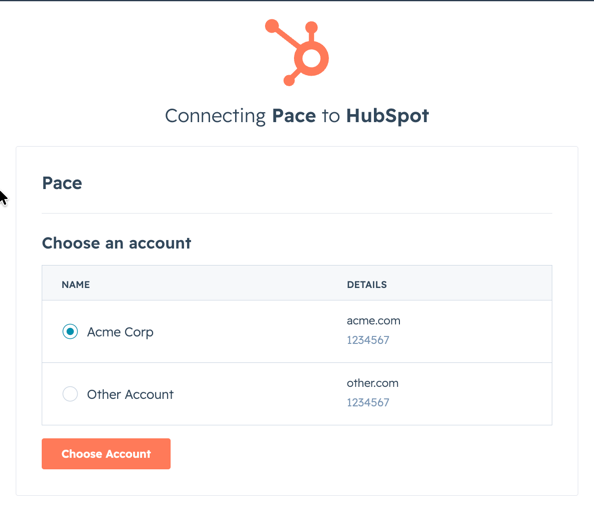
    HubSpot's account picker headed "Connecting Pace to HubSpot", listing the accounts you administer by name, domain and hub ID with a radio button each, above a Choose Account button
  5. Review the requested permissions on HubSpot's consent screen and click Connect app to approve.
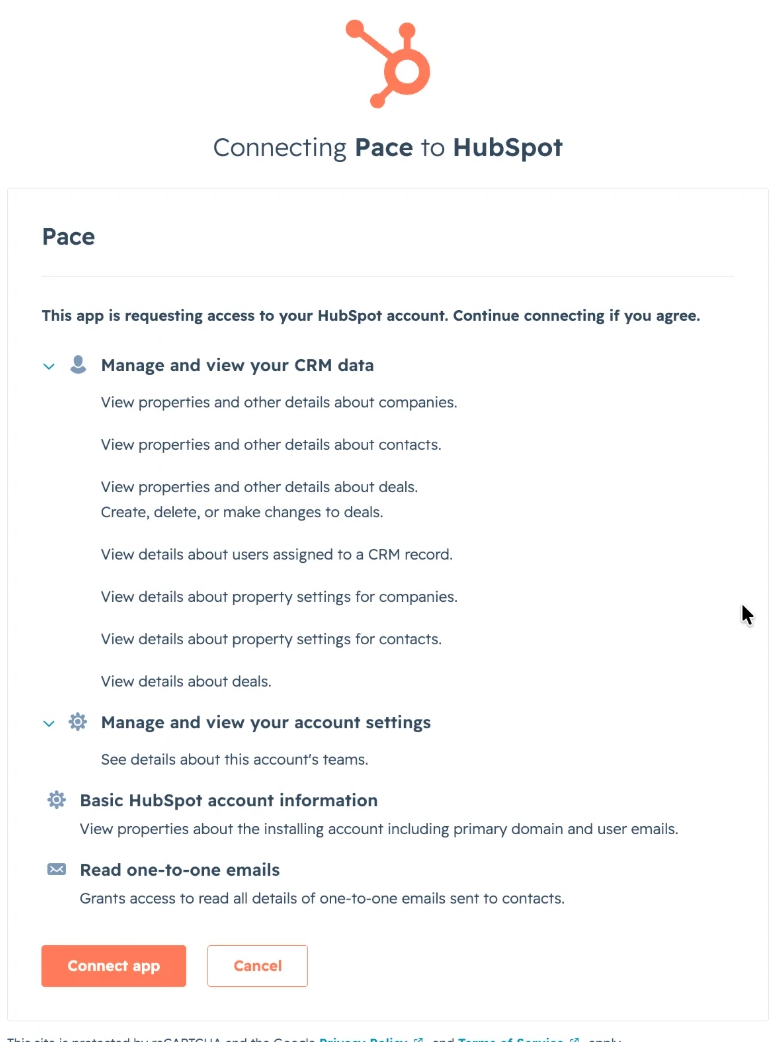
    HubSpot's consent screen headed "Connecting Pace to HubSpot", listing the requested access grouped under Manage and view your CRM data, Manage and view your account settings, Basic HubSpot account information, and Read one-to-one emails
    The line "Create, delete, or make changes to deals" is HubSpot's standard wording for the deal-write permission. In practice Pace only ever updates deal properties, and only when a rep edits a field from inside Pace — it never creates or deletes a deal. See Reads broadly, writes narrowly.
  6. HubSpot sends you back to Pace. The HubSpot card now shows Connected and the first sync begins automatically.

After connecting: Pace runs an initial import of your companies, contacts, deals, emails, and owners, then keeps them up to date on a recurring schedule. Ask Pace things like "summarize the top 5 deals closing this quarter" or "which deals look most likely to slip?" once the first sync completes.
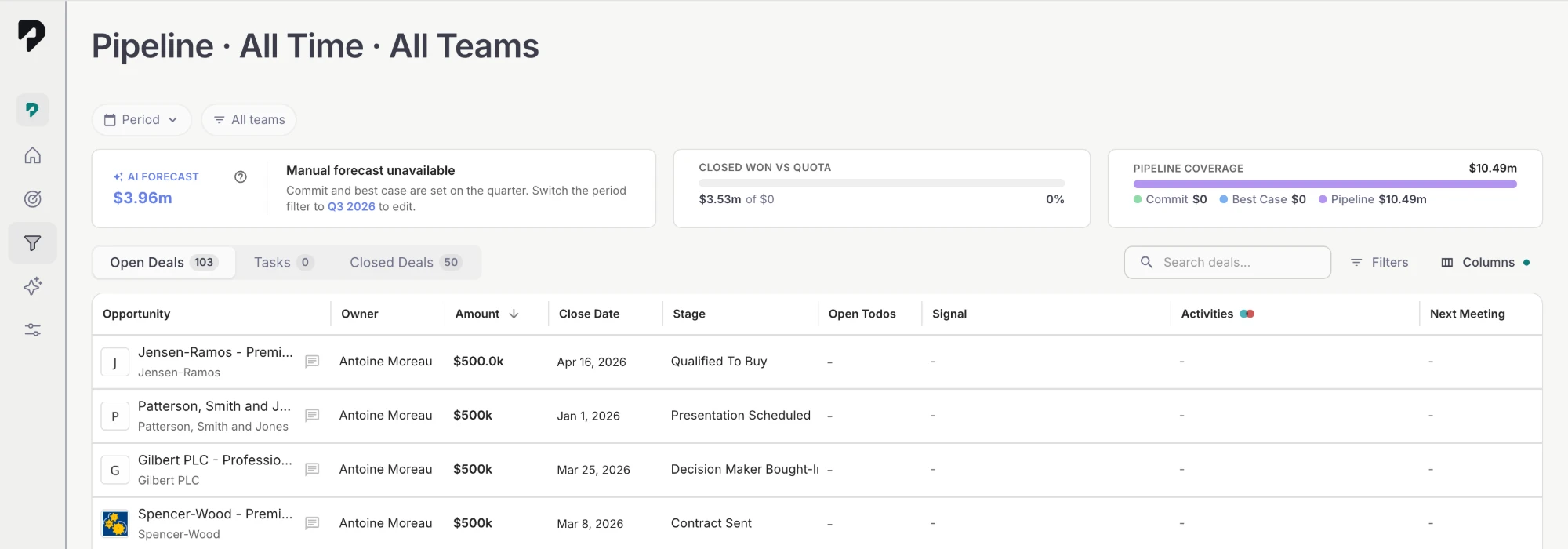
Pace Pipeline view listing synced HubSpot deals with owner, amount, close date and stage columns, above an AI forecast and pipeline coverage summary
Your HubSpot deals in Pace. Once the first sync finishes, deals appear in the pipeline with their owner, amount, close date, and stage — and Pace starts layering on its AI forecast and coverage numbers.

Reads broadly, writes narrowly.

Pace's access is overwhelmingly read. The one exception is deal properties: Pace can update those, and does so only when a rep edits a field from inside Pace. HubSpot approves an app's permissions as a single set at install time, so the deal-write permission comes with the connection.

What Pace reads
Companies, contacts, deals, emails, owners, and teams, plus the property definitions behind them — the data it scores, forecasts, and answers questions about.
  • Reads are scoped to the single HubSpot portal you authorize.
  • Forecast categories, win probabilities, todos, and notes created in Pace stay in Pace — they are never written to a HubSpot field.
What Pace can write
Deal properties, and nothing else. A rep editing a deal field in Pace — from the deal panel, the chat agent, or the update_crm_field MCP tool — updates that property on the HubSpot record.
  • Never companies, contacts, or emails. No activity logging. Nothing is ever created or deleted.
  • Read-only and calculated HubSpot properties stay read-only in Pace.
  • Every update is recorded in Pace's change log.

What Pace asks for, and why.

During the OAuth flow HubSpot shows you exactly which scopes Pace is requesting — see the consent screen in step 5 of the setup. Nine read scopes cover the sync itself. Two further scopes are requested as tier-dependent: HubSpot drops them if your portal doesn't include the underlying product, and grants them with the install if it does.

Core scopes — read only
oauth Baseline scope for the OAuth token exchange and refresh. Grants no data access on its own.
crm.objects.companies.read Read company records, which become accounts in Pace.
crm.objects.contacts.read Read contacts and their company associations.
crm.objects.deals.read Read deals — amount, stage, close date, pipeline, forecast category — to score, forecast, and monitor pipeline.
crm.objects.owners.read Read owners so each account, contact, and deal is attributed to the right rep.
crm.schemas.companies.read Read company property definitions, so Pace can discover your custom fields and their types.
crm.schemas.contacts.read Read contact property definitions, for the same field discovery.
crm.schemas.deals.read Read deal property definitions plus your pipeline and stage names, so Pace mirrors your funnel and can offer deal fields for mapping.
settings.users.teams.read Read your HubSpot team structure so forecasts roll up by team, not just by individual rep.
Tier-dependent scopes
crm.objects.deals.write Lets reps update deal properties in HubSpot from inside Pace. This is the only write Pace can perform — see Reads broadly, writes narrowly.
sales-email-read Lets Pace read logged email activity for engagement and momentum signals. Portals without the underlying product simply skip email sync; everything else works normally.
Scoped, and revocable. Access is limited to the single HubSpot portal you authorize. The only write Pace can ever perform is an update to a deal property — it never creates or deletes HubSpot records. You can revoke access at any time from HubSpot's Connected Apps settings. See the Security Policy and Privacy Policy for how data is stored and handled.

Customize what syncs, and how it maps.

Pace re-reads every property definition in your portal on each sync, so your custom HubSpot fields are discovered automatically — you never have to declare them. What you configure is which extras to actually pull, and which HubSpot property feeds each Pace field.

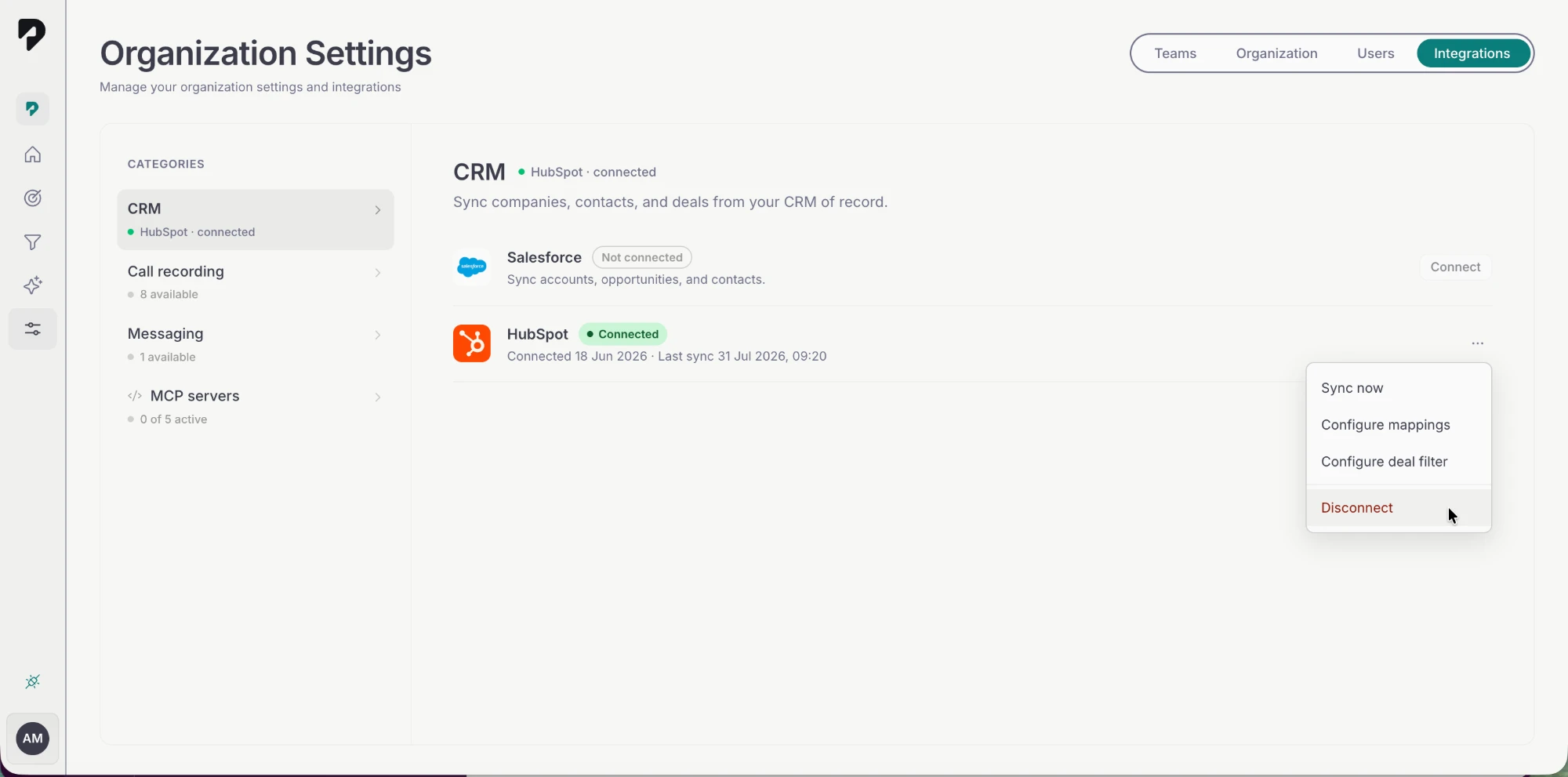
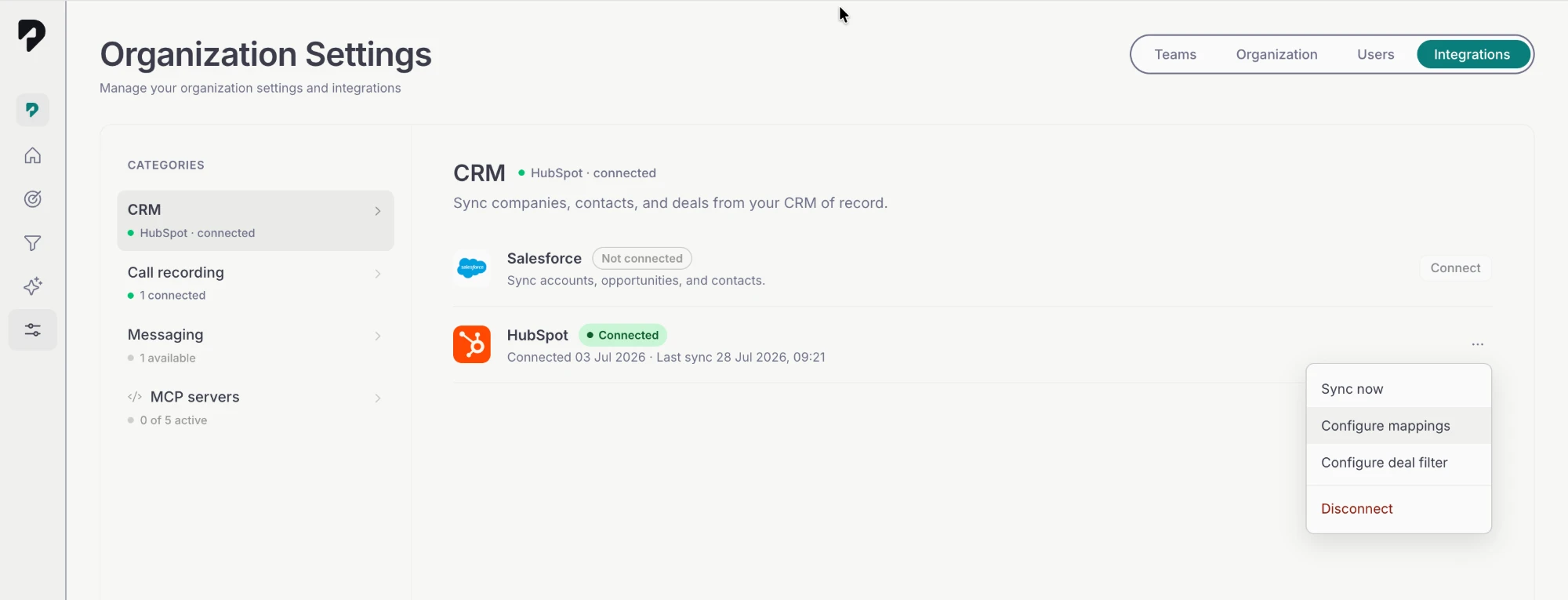
Where to find it. Go to Settings → Integrations → CRM, open the ··· menu on the HubSpot row, and choose Configure mappings. This requires the manage connections permission — without it the menu items are disabled.

The HubSpot row in Pace showing a green Connected badge with its connected and last sync dates, and the ⋯ menu open on Sync now, Configure mappings, Configure deal filter and Disconnect
The menu on a connected HubSpot row. The row also shows when the connection was made and when it last synced.
Configure mappings
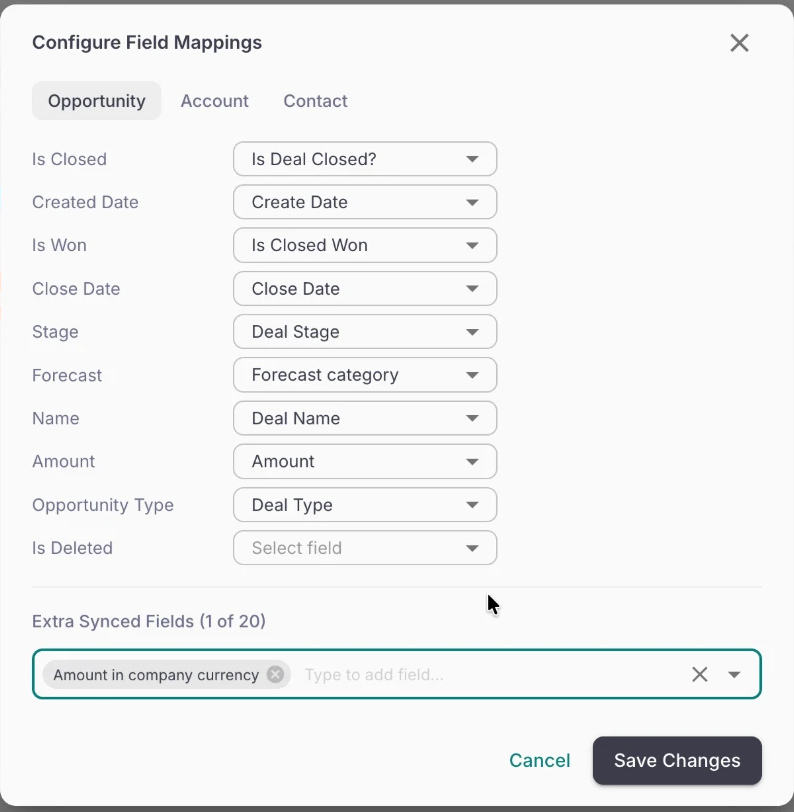
Opens the Configure Field Mappings dialog, with a tab per object: Opportunity, Account, and Contact. Each Pace field gets a dropdown of HubSpot properties to read it from.
  • Only type-compatible properties are offered — a currency field for amount, a date field for close date, and so on.
  • The Opportunity tab is the one that matters most for forecasting: amount, stage, close date, forecast category, and owner all drive Pace's scoring.
  • Changed a mapping and want the original back? Use Reset to default on that row.
  • Record identifiers can't be remapped — they're how Pace matches records back to HubSpot.
Extra synced fields
In the same dialog, below the mappings, Extra Synced Fields is where you pull in HubSpot properties that aren't mapped to a built-in Pace field — your custom deal and company properties. Available on the Opportunity and Account tabs.
  • Type to search, then pick up to 20 extra fields per object.
  • Once synced, they're available as filters and as columns in your pipeline and account views, and Pace's AI can reason over them.
  • Adding a field triggers a full re-fetch of that object so history is complete — expect the next sync to take longer than usual.
  • Fields already mapped to a Pace field are always synced and can't be turned off here.
The Configure Field Mappings dialog on the Opportunity tab, pairing Pace fields such as Close Date, Stage, Forecast and Amount with HubSpot properties, above an Extra Synced Fields picker reading 1 of 20
Configure Field Mappings, Opportunity tab. Each Pace field on the left reads from the HubSpot property you pick on the right. Extra Synced Fields at the bottom is where custom properties get pulled in — the counter shows how much of your 20-field allowance is used.

What runs on its own, and what you do by hand.

Once connected, most of the integration is automatic — there is nothing to schedule and no job to babysit. The manual actions are the ones that change something: forcing a refresh, or editing a deal field that writes back to HubSpot.

Automatic
Everything below happens without you doing anything.
  • Initial import runs as soon as you connect, pulling your companies, contacts, deals, emails, and owners.
  • Scheduled re-sync runs roughly every two hours per connection, picking up creates, updates, and deletes since the last run.
  • AI scoring re-evaluates win probability, suggested forecast category, and deal risk as new activity lands.
  • Alerts surface forecast changes and at-risk deals to the owning rep.
Manual
The actions you take yourself.
  • Sync now — the menu on the HubSpot row forces an immediate refresh instead of waiting for the next scheduled run.
  • Editing a deal field — changing a deal property from the Pace deal panel, from the chat agent, or through the update_crm_field MCP tool writes that property back to the HubSpot record. This is the only action that changes data in HubSpot.
  • Asking questions — query your pipeline in Pace's chat ("which deals look most likely to slip?"). Reads only; nothing is written to HubSpot.
  • Changing what syncs — field mappings, extra synced fields, and the deal filter, all covered in Customize what syncs.

Disconnect or uninstall.

Disconnecting stops the sync and revokes Pace's access to your portal, but keeps the data Pace has already synced so you can reconnect and pick up where you left off. Removing that data is a separate, deliberate step. Uninstalling the app in HubSpot has the same effect on access as disconnecting.

Nothing in HubSpot changes. Disconnecting and uninstalling only affect Pace's access and Pace's own copy of the data. No HubSpot record is ever edited or deleted, in your portal or anywhere else.
Disconnect — reversible
Pace stops syncing and its access to your portal is revoked, but the records already synced stay in your workspace.
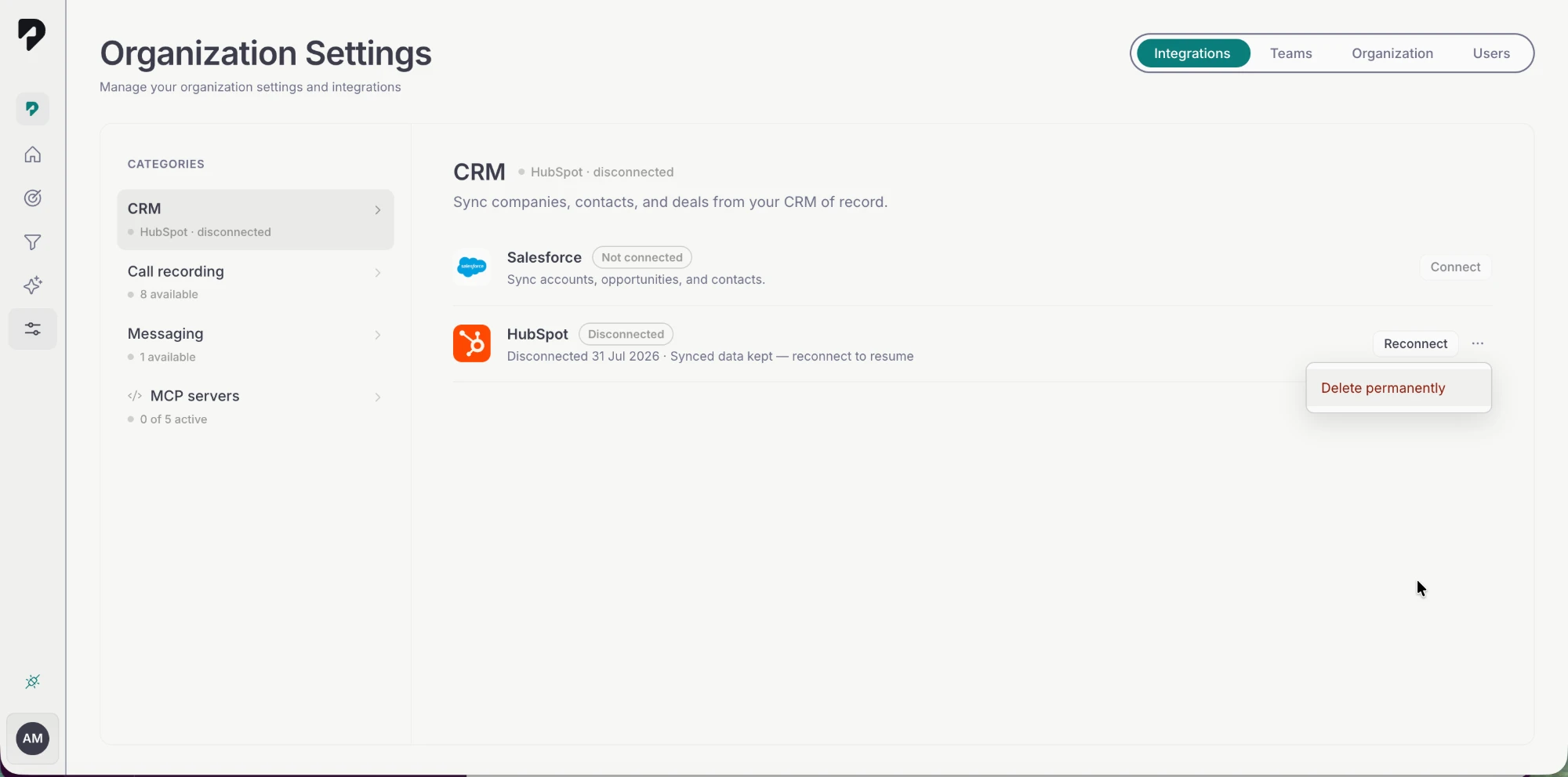
  • The HubSpot row shows Disconnected, with the date and a note that synced data is kept.
  • Deals, accounts, and contacts already synced are kept, along with their assessments and history.
  • Reconnect on the same row re-enables the existing connection and its history, so you pick up where you left off.
Delete permanently — not reversible
Offered on the menu once a connection is disconnected. It erases everything synced from HubSpot — opportunities, accounts, and contacts, along with their assessments.
  • You only need this to switch to a different CRM, since an organization holds one CRM connection at a time.
  • Reconnecting later starts from an empty history.
  • To keep your history, leave the connection disconnected instead.

Disconnect from Pace

Recommended · app.pacehq.ai

Recommended
  1. Sign in to Pace as an organization admin with the manage connections permission.
  2. Open Settings → Integrations and select the CRM category.
  3. Open the menu on the HubSpot row and choose Disconnect. It is the last item, styled red because it stops the sync.
    The connected HubSpot row in Pace with its ··· menu open on Sync now, Configure mappings, Configure deal filter and Disconnect, with the cursor over the red Disconnect item
  4. Confirm. Pace revokes the token with HubSpot and the row switches to Disconnected, reading Synced data kept — reconnect to resume. Reconnect picks it back up at any time.
  5. Optional, and permanent: to also remove that data, reopen the menu on the disconnected row and choose Delete permanently — the only item available in this state.
    The HubSpot row after disconnecting, showing a grey Disconnected badge and the caption "Disconnected 31 Jul 2026 · Synced data kept — reconnect to resume", a Reconnect button, and the ··· menu open on a single red Delete permanently item

This is the recommended path because it does both things at once: it revokes the token with HubSpot and leaves the connection in the reversible Disconnected state, ready to reconnect. You do not need to repeat anything in HubSpot afterwards.

Common questions.

How do I disconnect HubSpot?

From either side — HubSpot's Connected Apps settings, or the ··· menu on the HubSpot row in Pace. Both revoke the token. See Disconnect your HubSpot account for the steps and, importantly, what disconnecting removes from your Pace workspace.

The Connect button is disabled — why?

Pace connects one CRM of record at a time. If another CRM (such as Salesforce) is already connected, you'll see a note to disconnect it first. Remove the existing CRM connection, then Connect HubSpot.

How often does data sync?

Pace runs a full initial import right after you connect, then re-syncs on a schedule roughly every two hours — so an edit in HubSpot shows up in Pace within a couple of hours rather than instantly. If you need a change reflected sooner, force a refresh with Sync now from the ··· menu on the HubSpot row.

Can Pace change my HubSpot data?

Only deal properties, and only when a rep edits a field from inside Pace. Pace never creates or deletes HubSpot records, never writes to companies, contacts, or emails, and never logs activity. See Reads broadly, writes narrowly for the full picture.

I connected but don't see my deals in Pace.

The first import can take a few minutes for larger portals. Confirm the HubSpot card shows Connected in Settings → Integrations → CRM, and that the HubSpot account you authorized is the one containing your pipeline. Still stuck? Reach out at support@pacehq.ai.

Some of my deals are missing.

Two usual causes. First, a deal must be associated with a company to sync — Pace organizes everything by account, so unassociated deals are skipped. Add the company association in HubSpot and the deal appears on the next sync. Second, check whether a deal filter is excluding it: open the ··· menu on the HubSpot row and choose Configure deal filter.

How do I sync a custom HubSpot property?

Custom properties are discovered automatically — you just have to switch them on. Open the ··· menu on the HubSpot row, choose Configure mappings, and add the property under Extra Synced Fields on the Opportunity or Account tab (up to 20 per object). See Customize what syncs for details.

Who can install the integration?

You need to be a Pace organization admin and a HubSpot user with permission to install apps (typically a HubSpot Super Admin). The OAuth consent is granted once, by an admin, for the whole workspace.

Need a hand? Email support@pacehq.ai and our team will help you get connected.